Events Booking - Google Calendar
If you want to synchronize events which you created in Events Booking to Google Calendar, you can enable and use Events Booking - Google Calendar plugin. To go System -> Plugins, find and enable the plugin to use the integration. There are few setup steps needed for the synchronization to work:
Create a Google Cloud Project
- Go to the Google Cloud Console.
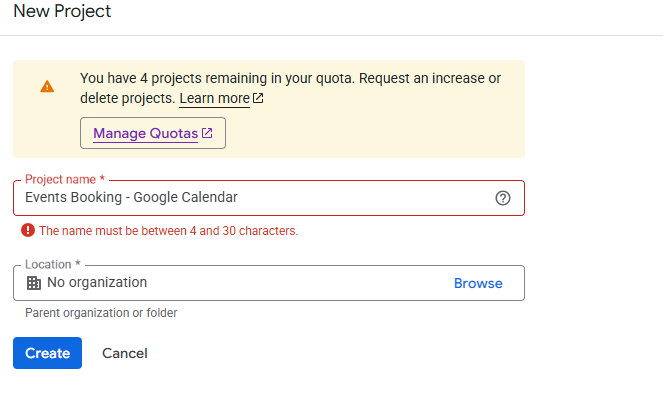
- Click Select a project → New Project.
- Enter a name (e.g.,
EB - Google Calendar) and click Create.
Enable the Google Calendar API
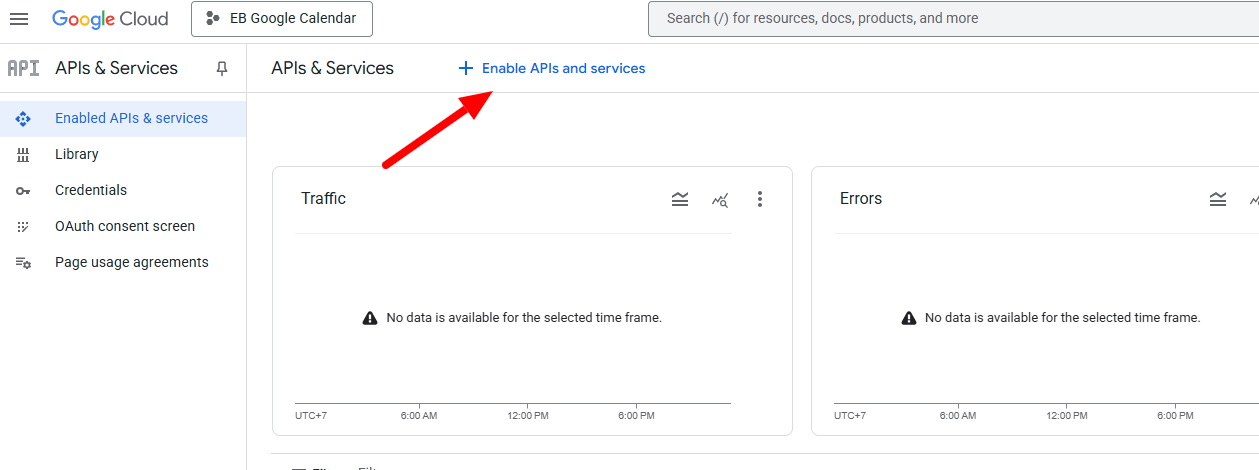
- Access to the project, then click on Enable APIs and services
- Search for Google Calendar API.
- Click Google Calendar API → Enable.
Create a Service Account
- Go to IAM & Admin > Service Accounts.
- Click + CREATE SERVICE ACCOUNT at the top.
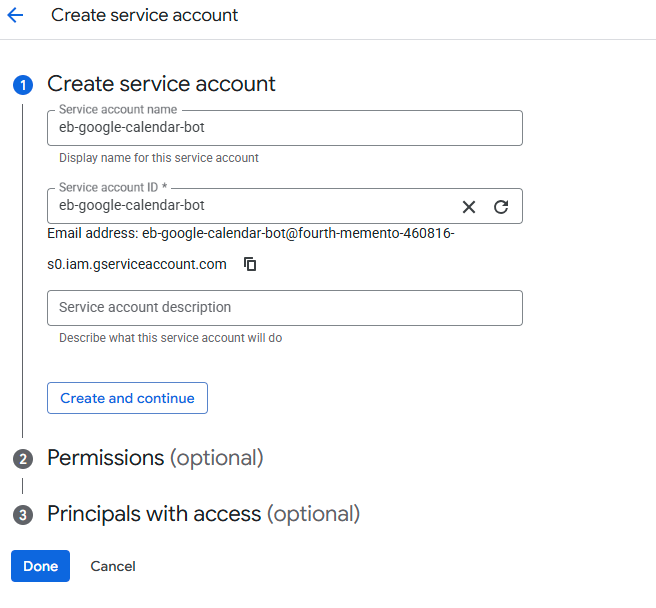
- Fill in the following:
- Service account name: (e.g.,
eb-google-calendar-bot) - Click Create and continue.
- Service account name: (e.g.,
- In the Grant this service account access to the project step, skip assigning roles and click Continue, then Done.
Create and Download a JSON Key File
- Find your new service account in the list and click on its name.
- Go to the Keys tab.
- Click Add Key → Create new key.
- Choose JSON format, then click Create.
- A
.jsonkey file will be downloaded to your computer. Keep this file safe! - Rename the downloaded json file to be service-account.json, upload that file to plugins/eventbooking/googlecalendar/credentials folder on your site.
Share Your Google Calendar with the Service Account
- Open Google Calendar.
- Hover over the calendar you want to use, click the three dots (⋮), and select Settings and sharing.
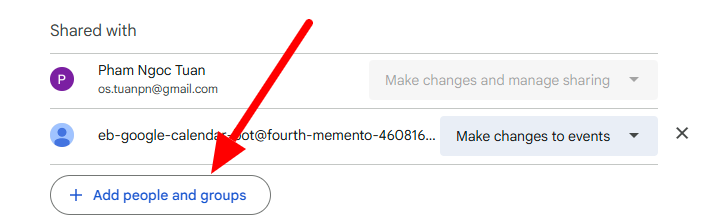
- Scroll down to Share with specific people or groups.
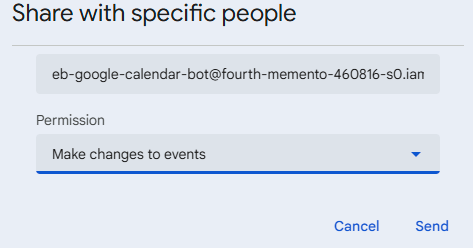
- Click Add people and enter your service account’s email (e.g.,
joomla-calendar-bot@your-project.iam.gserviceaccount.com). - Set permissions to Make changes to events and click Send.
- Also, on this calendar Settings and sharing page, look for Calendar ID, copy that ID and store it somewhere. It is needed for the next step (enter that ID into Calendar ID parameter of Events Booking - Google Calendar plugin

Configure Events Booking - Google Calendar plugin
- Go to System -> Plugins, find and enable Events Booking - Google Calendar plugin
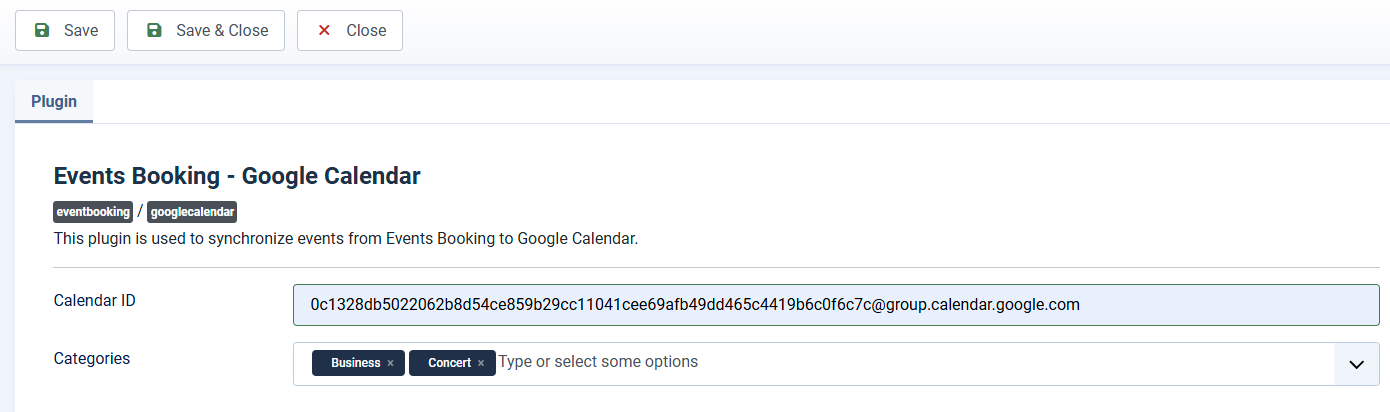
- Click on the plugin to edit, there is a parameter called Calendar ID. Enter the Calendar ID which you saved in step #6 above into that parameter, save it.
- By default, all events on your site will be synchronized to Google Calendar. If you want only events from certain categories will be synchronized, select the categories you want in the Categories parameter.
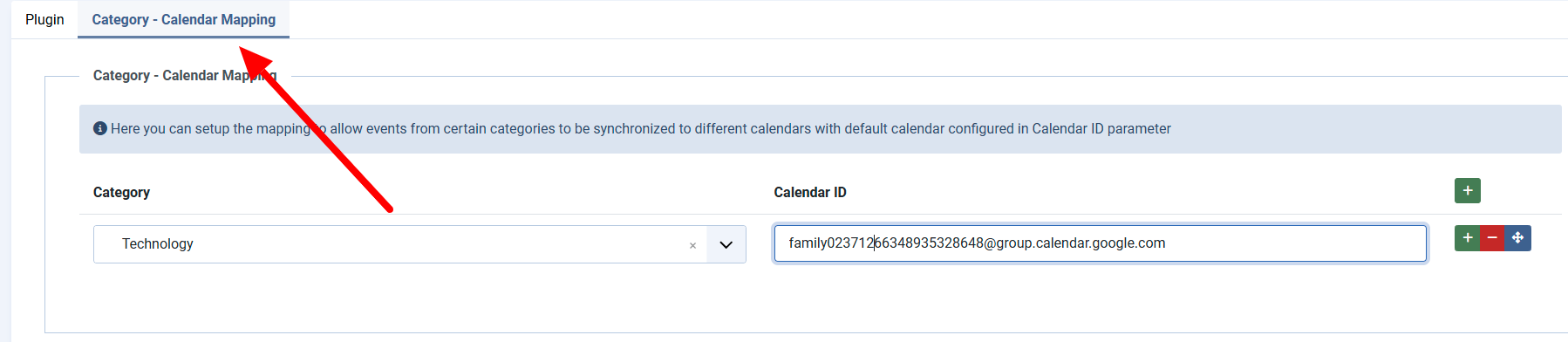
- By default, all events will be synchronized to the calendar which you configured in Calendar ID parameter. If you want events from a category to be synchronized to a different calendar, look at Category - Calendar Mapping tab to setup the mapping between each category and the calendar you want to synchronize data to.
Now, when you save an event, if the event is published and have both Event Date and Event End Date configured, it will be synchronized to the selected Google Calendar. If the saved event has children events, these children events will also be synchronized to the configured Calendar as well.