Refund Payment
Use Refund to return a payment through its original payment gateway. The payment must be Paid, have a positive Gross Amount, and have a transaction ID. The payment plugin must support refunds and your account must have Configure ACL & Options permission for Payment Form.
For the built-in PayPal plugin, enter your REST API Client ID and Client Secret on the plugin's Advanced tab. In sandbox mode, use Sandbox Client ID and Sandbox Client Secret. See Payment Plugins.
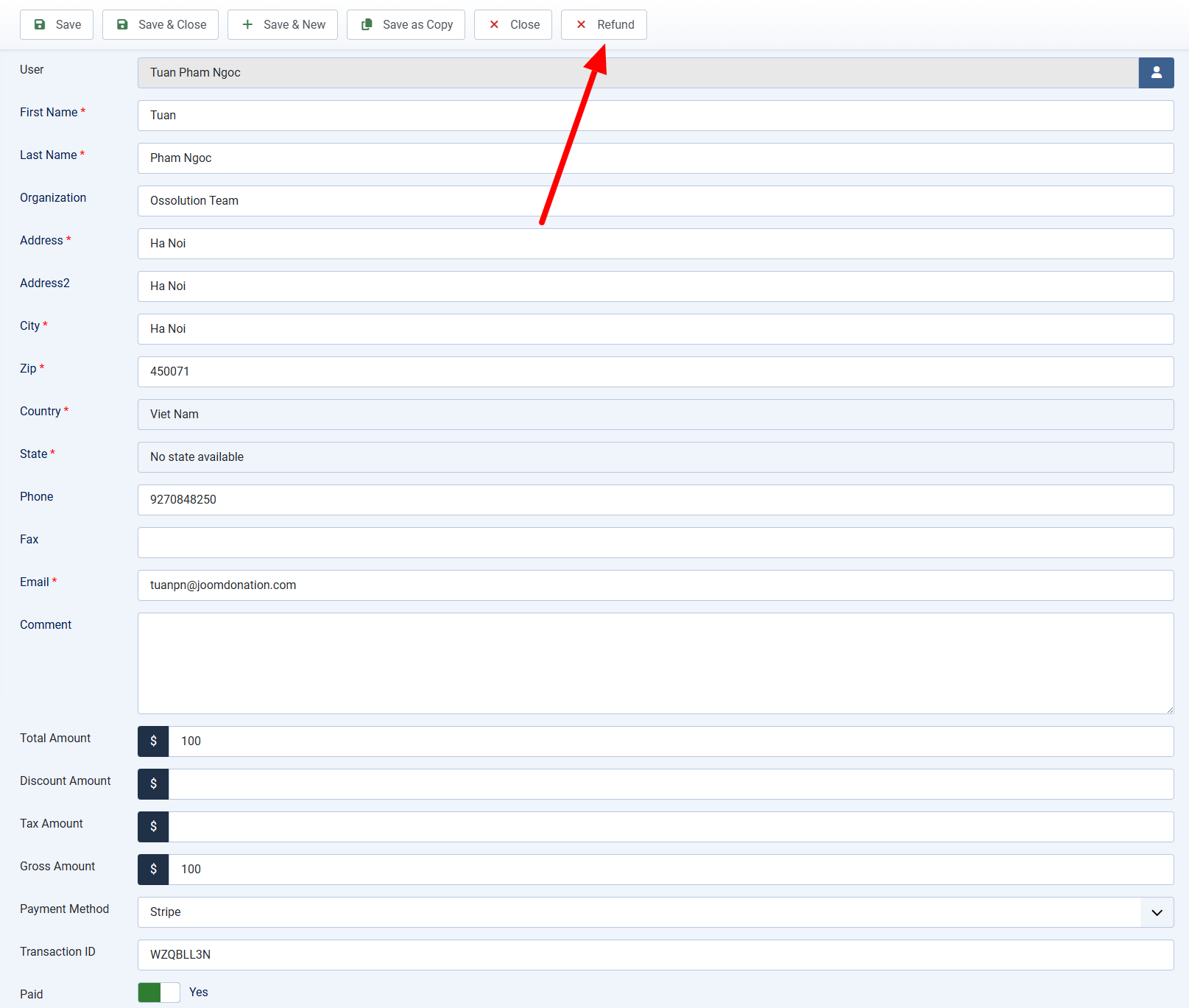
- Open Components → Payment Form → Payments and edit the payment record.
- Verify the payment amount and transaction ID. The refund dialog asks for confirmation and has no field for a partial refund amount.
- Click Refund and confirm. After processing, check that the record displays Refunded in the Payments list. If an error appears, check the transaction in your gateway account before retrying.
To customize the email sent to the customer after a successful refund, edit Payment Refunded Email Subject and Payment Refunded Email Body under Payment Form → Configuration → Messages. Leave the subject blank to skip this email. See Messages.