Add New Form
In the Joomla administrator area, go to Components → Payment Form → Forms and select New.
- On General, enter a Title and set Amount to the base charge. Enter
0if the form is free or if fields determine the full amount. See Form Types for examples of both setups. - Choose Modern under Form Layout to configure label placement and columns. Set Access to Public for a form open to everyone or Registered to require a Joomla login.
- For a form that takes payments, select the methods you want to offer under Advanced Settings → Payment Methods. Configure and publish them first under Payment Plugins.
- Save the form, then go to Custom Fields to assign and configure its fields.
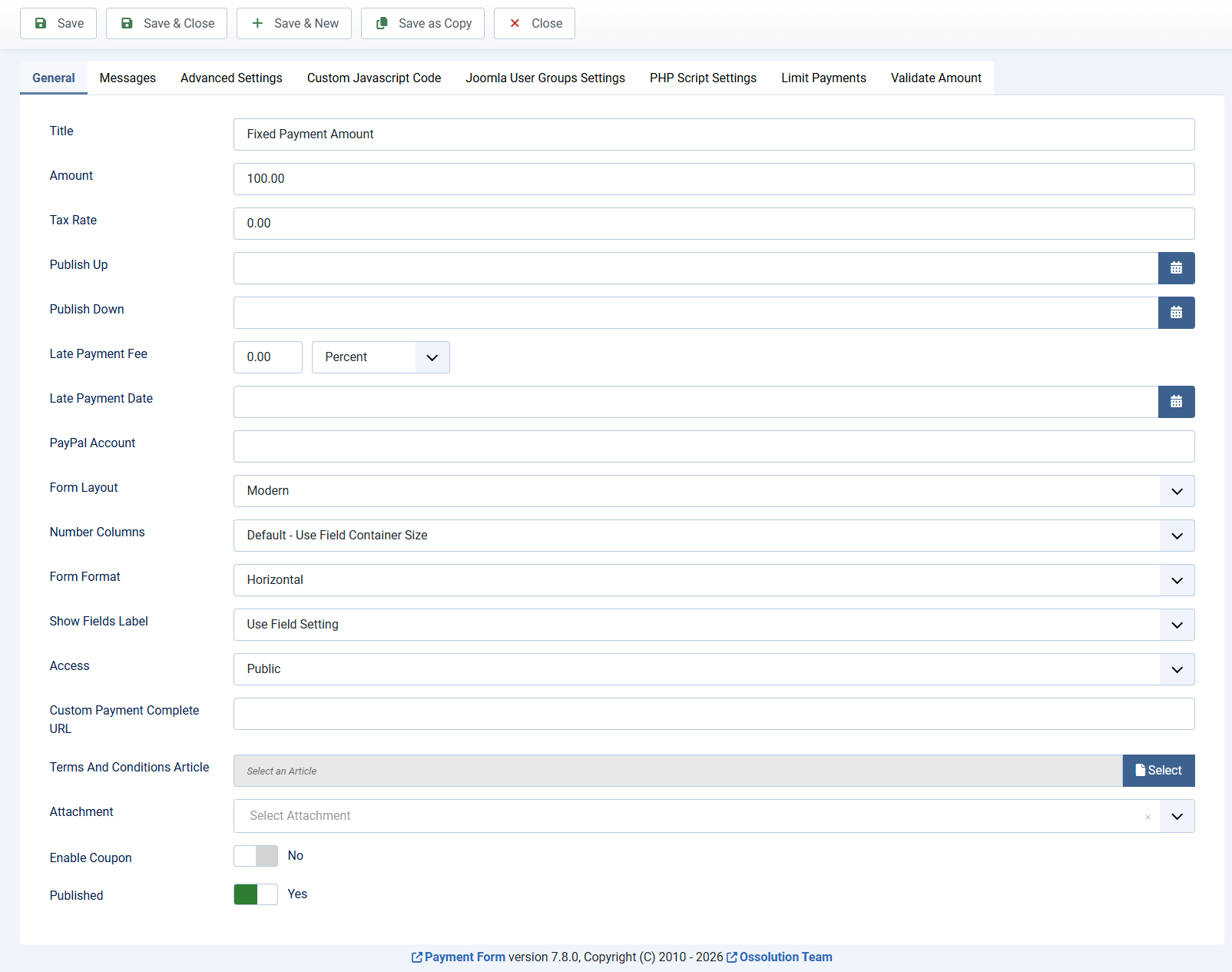
General
| Setting | Description |
|---|---|
| Title | The name shown to payers, such as Conference registration. |
| Amount | The base charge in the form's currency. Custom fee fields can add to it. To accept a payer-entered amount with no base charge, set this to 0 and assign an amount field. |
| Tax Rate | Enter a fixed percentage for this form, such as 10 for 10%. When EU Tax Rules are enabled, they determine the tax and this setting is hidden. |
| Publish Up | The date and time when the published form opens. Leave blank to open the form as soon as it is published. |
| Publish Down | The date and time when the form closes. Leave blank to keep it open until you unpublish it. |
| Late Payment Fee | Choose Percent or Fixed Amount. A percentage applies to the base amount plus custom field fees, before coupons and tax. |
| Late Payment Date | Payments made after this date include the late fee. Leave blank to skip the late fee. |
| PayPal Account | Overrides the receiving account for the PayPal Standard payment plugin. Leave blank to use the account configured in that plugin. |
| Form Layout | Choose Modern for configurable columns and label placement. Default, Inline, 2 Columns 2 Lines, 2 Columns Inline, and any installed custom layouts are also available. |
| Number Columns | In Modern, choose 2, 3, or 4 for equal field widths, or Default - Use Field Container Size to set widths in the custom field editor. |
| Form Format | In Modern, choose Horizontal for labels beside inputs or Stacked for labels above inputs. See Modern Form Layouts for examples. |
| Show Fields Label | Choose Use Field Setting to follow each custom field's Show Field Label setting. Choose Yes or No to set label visibility for the form's custom fields together. |
| Access | The Joomla viewing access level required to open and submit the form. |
| Custom Payment Complete URL | Sends the payer to your URL in place of Payment Form's built-in completion page. If you use it for an offline payment form, put the payment instructions on the destination page. |
| Terms And Conditions Article | Select a Joomla article for this form, or leave it blank to use the global article. Enable Show Terms And Conditions Checkbox in Configuration to ask the payer to agree. |
| Attachment | Adds a file to the email sent to the payer. Place the file in media/com_pmform first, then select it here. The dropdown uses the allowed file types in Configuration. |
| Enable Coupon | Shows the coupon-code input. Create the codes the form should accept under Coupons. |
| Published | Set to Yes when the form is ready to accept submissions. The publish dates and access level still apply. |
Messages
Use this tab to replace the default messages and email templates for this form. Leave a field blank to use the configured default. For offline payments, a message set on the form takes precedence over instructions configured for the selected offline method.
| Setting | Description |
|---|---|
| Form Message | Appears above the form. You can use [FORM_TITLE] and [AMOUNT]. |
| Confirmation Message | Appears above the payment summary when Show Confirmation Step is enabled in Configuration. You can use [FORM_TITLE] and [AMOUNT]. |
| Thank You Message | Appears on the built-in completion page after an online payment or a free submission. |
| Thank You Message (Offline Payment) | Appears on the built-in completion page after an offline submission. Use it to tell the payer what to do next. |
| Cancel Message | Appears on the cancellation page. |
| Admin Email Subject | The subject of the notification sent to the form's notification email addresses. |
| Admin Email Body | The body of the payment notification sent to administrators. |
| User Email Subject | The subject of the payment email sent to the payer. |
| User Email Body | The body of the payer's confirmation email for an online payment or a free submission. |
| User Email Body (Offline Payment) | The body of the payer's confirmation email for an offline submission. Include instructions such as where to send a bank transfer and which reference to use. |
Use tags such as [FORM_TITLE] in an email subject or [PAYMENT_DETAIL] in an email body to insert payment information.
Advanced Settings
| Setting | Description |
|---|---|
| Notification Emails | Comma-separated addresses that receive payment notifications for this form. Leave blank to use the global notification addresses. |
| Payment Methods | Select the published methods to offer on this form, or select All Payment Methods to allow all published methods available to the payer. When only one method is available, Payment Form selects it automatically. |
| Currency | The currency used for payments from this form. Select Default to use the global currency. Check that the selected gateway supports the currency you choose. |
| Currency Symbol | The symbol displayed for this form. Leave blank to use the global symbol. If you change Currency, update the symbol to match. |
| User Registration Integration | Choose whether guests enter Joomla account details as part of the form. Select Use Global to inherit the component setting. |
| Show Login Box | Displays a login box for existing users when User Registration Integration is enabled. Select Use Global to inherit the component setting. See Registration and login. |
| Invoice Format | Overrides the global invoice template when PDF invoices are enabled. Leave blank to use the global template. |
Some installations also show per-form credentials for Authorize.net or PayPal Standard Checkout. To offer the same gateway with different credentials on different forms, you can duplicate a payment plugin, configure the copy, and select the appropriate instance in each form's Payment Methods.
Custom JavaScript
Enter form-specific JavaScript in the Custom Javascript Code tab. Payment Form loads the code when it renders this form on the site.
Translation and integration settings
When Joomla multilingual support is enabled, the Translation tab lets you translate the form title, messages, email subjects, and email bodies for each configured language.
Enabled Payment Form plugins can add tabs to the editor. For example, Limit Payments controls how many payments the form accepts, and Validate Payment Amount sets the allowed payment range for the form.