Export Payments
Use Export Payments to download payment records as a CSV file that you can open in Excel or another spreadsheet application.
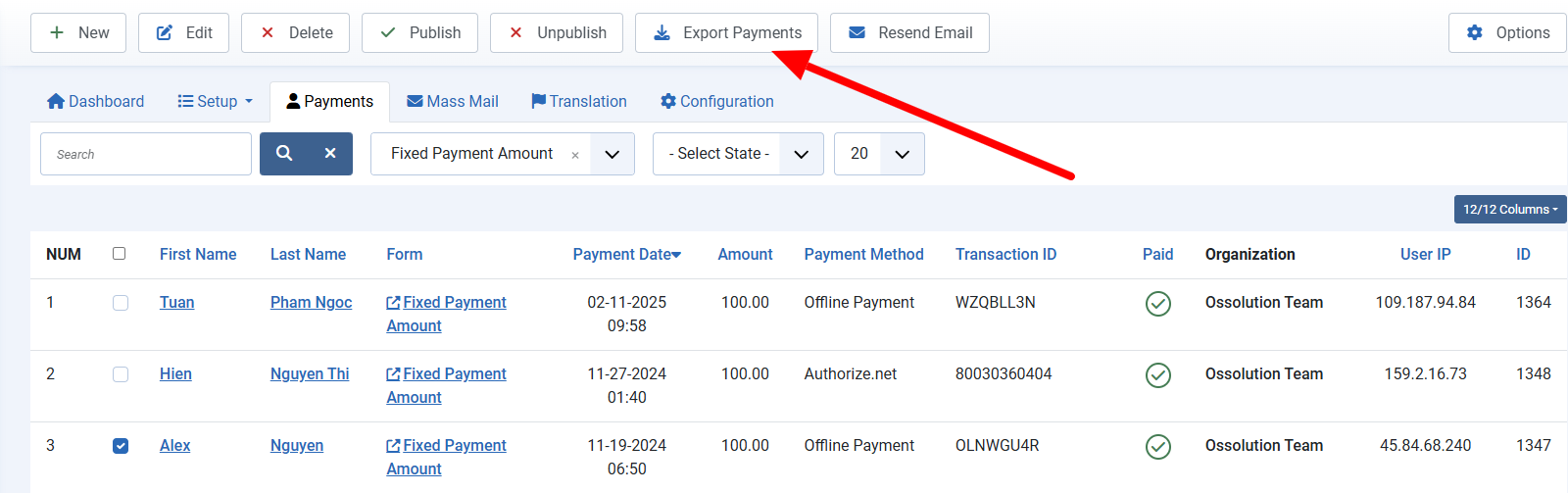
- Open Components → Payment Form → Payments.
- Select a form to limit the export to that form, or leave Select Form at its default to include records from all forms. You can also narrow the results by status, search term, or an available custom field filter.
- To export specific records, select their checkboxes. Leave all boxes clear to export every record that matches the current filters, including matches on other pages.
- Click Export Payments to download
payment_records.csv.
The CSV includes standard payment details such as amounts, payment method, status, and transaction ID. To include a form field, publish the field and set Show On Export to Yes. If your spreadsheet opens the data in a single column, use the delimiter set under Payment Form → Configuration → General → CSV Delimiter when importing the file.
The CSV currently labels refunded payments as Paid if they are included in the export. Check the Refunded badge in the Payments list before using the CSV to reconcile refunds.