Display a Single Form
Payment Form has different options to show form to users: Through menu item, embed form in a Joomla article or use module to display form in a module position on your site. Find out how to use these options in sections below:
Use menu item
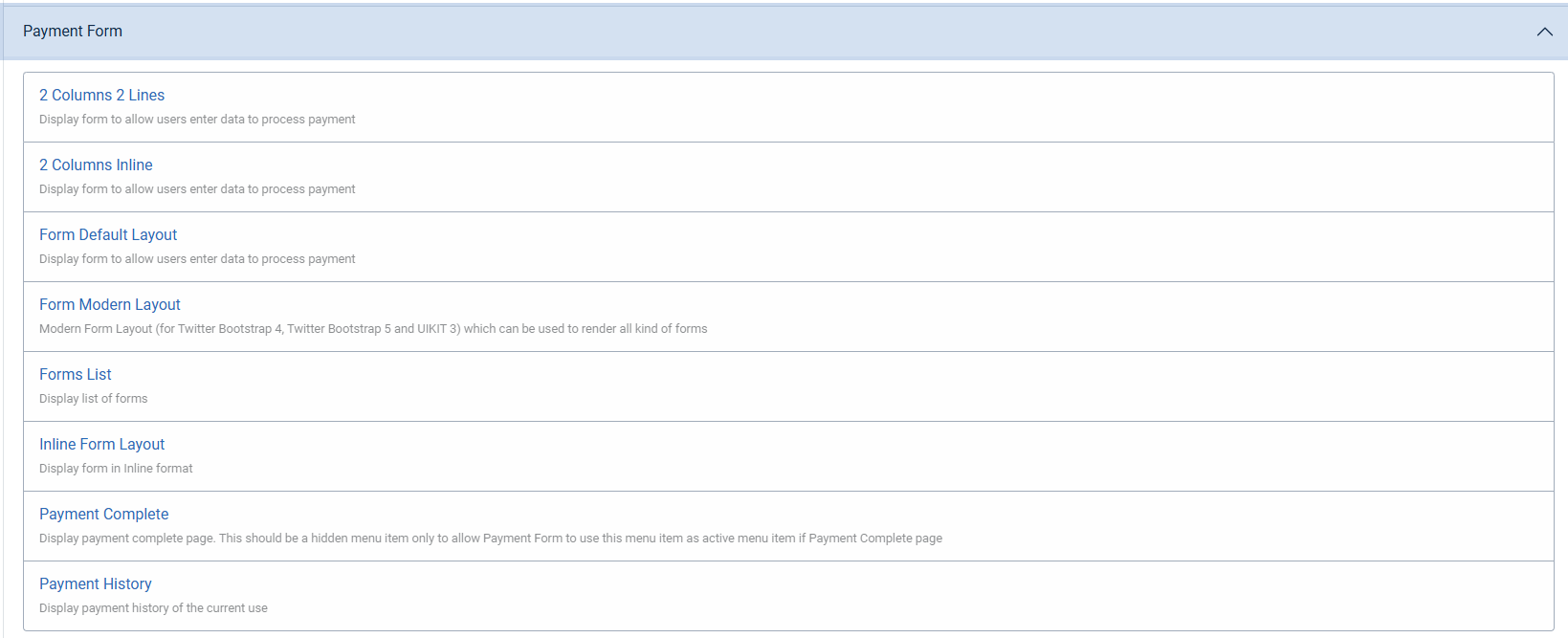
You can create a menu item to link to one of menu item types below of Payment Form to display a single form. However, we recommend to use Form Modern Layout menu item type, all other menu item types were using in old days and will be removed in the future. For layout examples and setup instructions, see Modern Form Layouts.
| Menu item type | Layout |
|---|---|
| Form Modern Layout | Recommended. Configure field columns, label placement, or a custom grid. |
| Form Default Layout | Display the form with the default layout. |
| Inline Form Layout | Display the form with the inline layout. |
| 2 Columns 2 Lines | Display fields in two columns with labels above the inputs. |
| 2 Columns Inline | Display fields in two columns with labels beside the inputs. |
Embed the form in a Joomla article
The Content - Payment Form plugin allows you to embed a form in a Joomla article. If you want to have that behavior, follow the instructions below to setup:
- Go to System → Plugins, find and and enable Content - Payment Form plugin.
- Open the Joomla article and enter
{pmform FORM_ID}where you want the form to appear. ReplaceFORM_IDwith the ID of the form. For example,{pmform 2}displays form with ID = 2. Use exactly one space betweenpmformand the ID. - Save the article.
Show the form in a module position
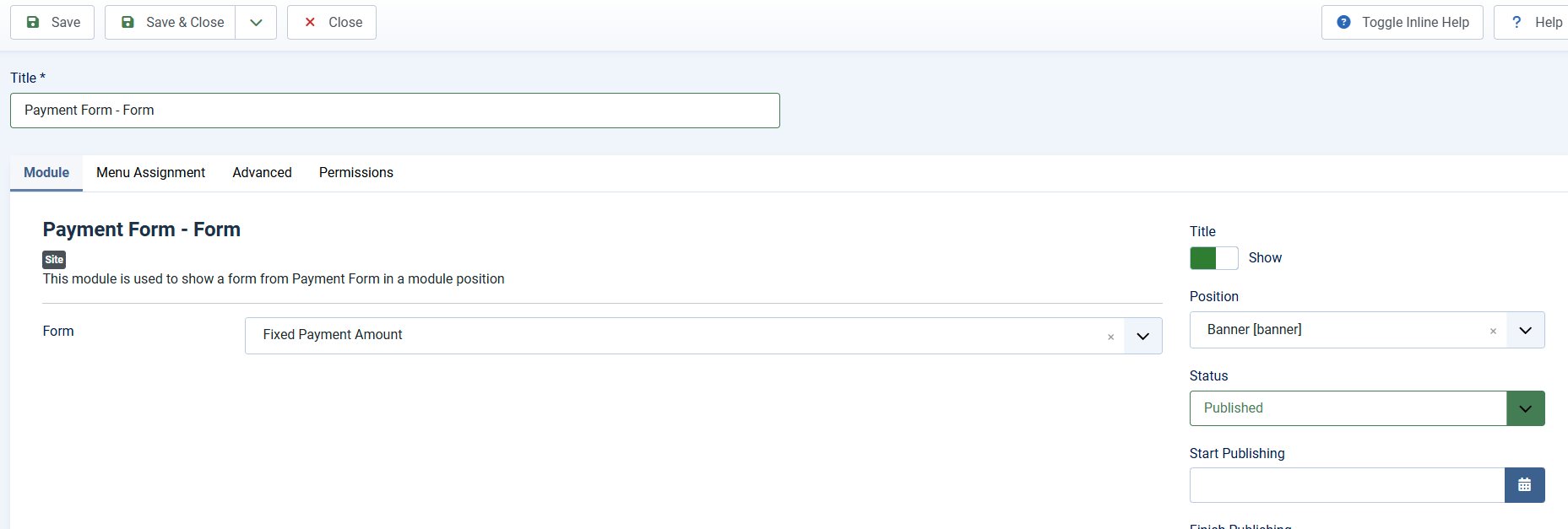
If you want to display a form in a module position on your site, access to System -> Site Modules, press new button in the toolbar to create an instance of Payment Form - Form module, select Form, choose position, assign it to the pages/menu items you want and publish it.