Custom Fee Fields
A custom fee field adds to the form's base Amount when a payer selects an option or enters a value. For example, a membership form can add a fee for a selected level, and a registration form can add fees for several optional extras.
Open Components → Payment Form → Custom Fields in Joomla. Add a custom field or edit an existing one, assign it to your form, and set Fee Field to Yes. This setting is available for Text, Number, Range, Hidden, Date, List, Checkboxes, and Radio.
Set the form's Amount to the base charge. Use 0 when all pricing comes from custom fee fields. The examples below use a fixed base amount and show subtotals before any late-payment fee, discount, tax, or payment-method fee.
Charge for selected options
For Radio, List, and Checkboxes, enter one item per line in each of these three boxes. Keep the lines in the same order so each option gets its intended label and fee.
| Setting | What to enter |
|---|---|
| Options Value | The stored value, such as silver. Use it in Default Values to preselect that option. |
| Options Text | The label the payer sees, such as Silver (+10). Include the price in the label if you want it displayed alongside the option. |
| Fee Values | The amount to add, such as 10. Enter 0 for a free option and enter amounts without currency symbols. |
Leave Fee Formula empty for these examples so Payment Form uses Fee Values.
One choice with Radio or a single dropdown
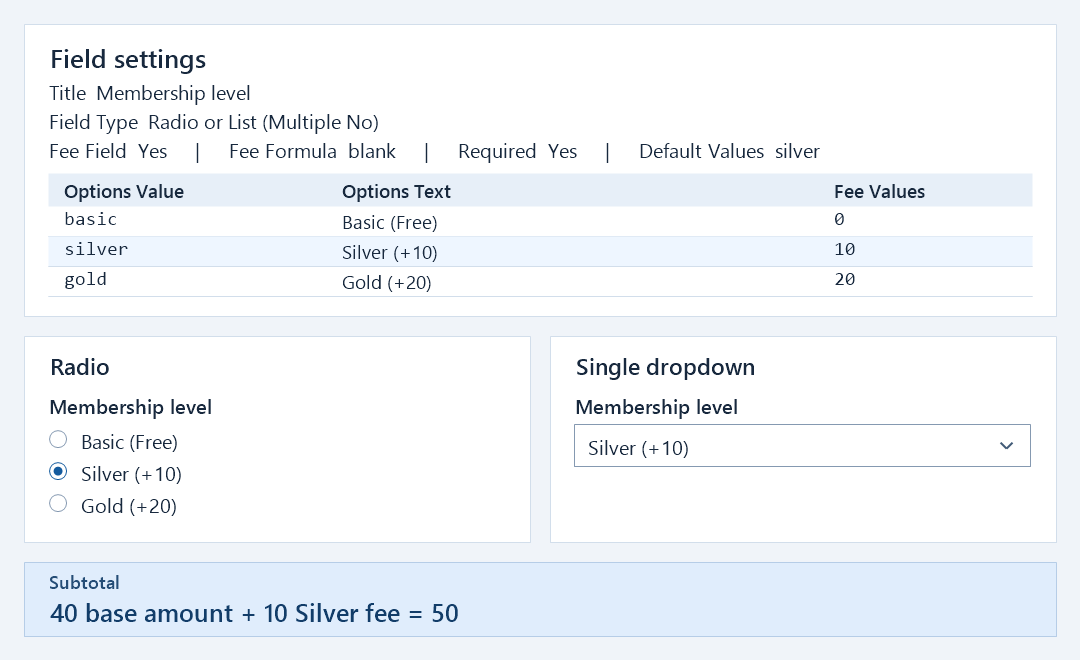
Create a field titled Membership level. Choose Radio to show all options at once, or choose List and set Multiple to No to show a dropdown. Set Required to Yes and enter silver in Default Values to preselect Silver.
| Line | Options Value | Options Text | Fee Values |
|---|---|---|---|
| 1 | basic |
Basic (Free) | 0 |
| 2 | silver |
Silver (+10) | 10 |
| 3 | gold |
Gold (+20) | 20 |
Set the form's Amount to 40. With Silver selected, the field adds 10, for a subtotal of 50. Switching to Gold changes the field fee to 20, for a subtotal of 60.
Multiple choices with Checkboxes or a multiple-select list
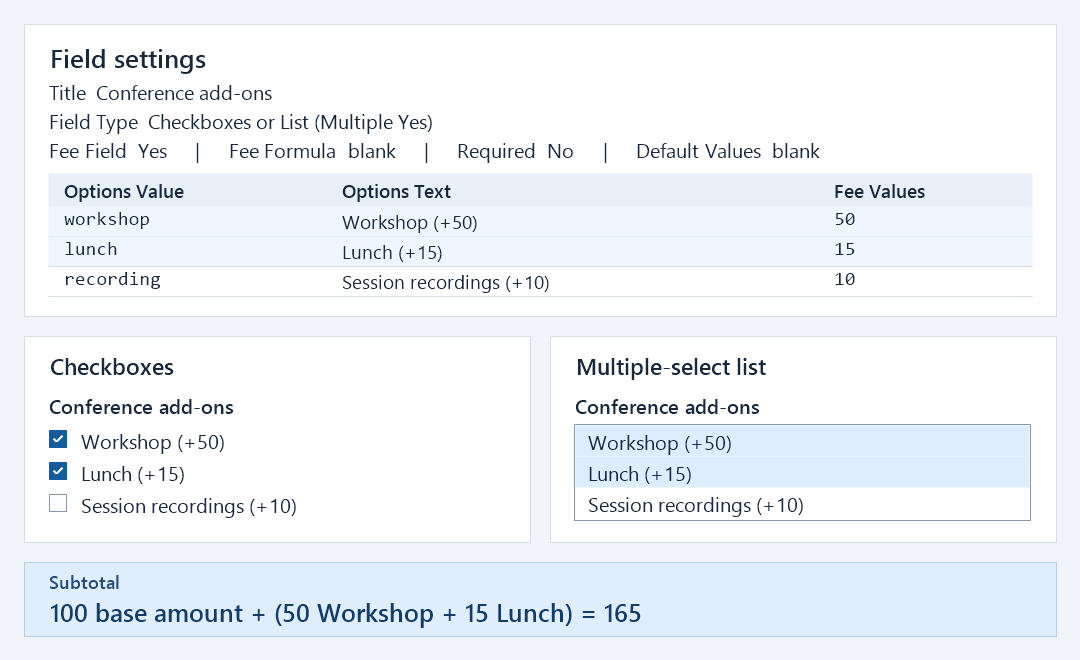
Create a field titled Conference add-ons. Choose Checkboxes, or choose List and set Multiple to Yes. Set Required to No and leave Default Values empty so the payer can skip the add-ons.
| Line | Options Value | Options Text | Fee Values |
|---|---|---|---|
| 1 | workshop |
Workshop (+50) | 50 |
| 2 | lunch |
Lunch (+15) | 15 |
| 3 | recording |
Session recordings (+10) | 10 |
Set the form's Amount to 100. If the payer selects Workshop and Lunch, the field adds 50 + 15 = 65, for a subtotal of 165. With no add-ons selected, the subtotal is 100.
Charge based on a number the payer enters
Use a Number field for an amount or a quantity. For example, to let the payer enter an optional donation, create a Donation Amount field, set Fee Field to Yes, and enter [FIELD_VALUE] in Fee Formula. If the payer enters 10, the field adds 10. Set the form's Amount to 0 if the donation is the only charge.
Text, Number, Range, and Hidden fee fields use [FIELD_VALUE] automatically when Fee Formula is empty.
Calculate a fee with a formula
Use Fee Formula for pricing based on arithmetic. You can use +, -, *, /, and parentheses.
| Pricing rule | Fee Formula | Example |
|---|---|---|
| Add a fixed charge | 5 |
Adds 5. |
| Charge 20 per ticket entered in this field | [FIELD_VALUE] * 20 |
A quantity of 3 adds 60. |
| Charge 10% of the base amount | [FORM_AMOUNT] * 0.10 |
A base amount of 100 adds 10. |
Charge 5% of the subtotal before percentage fees using [PF_TOTAL_AMOUNT] |
[PF_TOTAL_AMOUNT] * 0.05 |
A subtotal of 100 adds 5. |
Reference form amounts and field values
| Variable | Value used in the calculation |
|---|---|
[FIELD_VALUE] |
The current field's value converted to a number. For a single-choice field, this comes from the stored Options Value, so use a numeric option value if the formula relies on it. |
[FORM_AMOUNT] |
The base amount used for the payment before custom fees. |
[FIELD_NAME] |
A value from another field. Use its Name in uppercase. For example, pf_quantity becomes [PF_QUANTITY]. For numeric inputs this is the input value. For choices with fixed fees it is the mapped fee, or the sum of mapped fees for multiple selections. |
[PF_TOTAL_AMOUNT] |
The base amount plus all custom fees calculated before the separate pass for Fee Formula expressions that use this variable. Each of those expressions uses the same subtotal. |
Calculate the fee for an individual option
You can also put a formula on a line in Fee Values. For example, if a Number field named pf_quantity collects the number of tickets, enter [PF_QUANTITY] * 20 on the Fee Values line for Standard ticket. Selecting Standard ticket with a quantity of 3 adds 60. For a multiple-choice field, Payment Form evaluates the fee for each selected option and adds the results.
Use Fee Formula on a fee field for calculations that depend on [PF_TOTAL_AMOUNT]. Payment Form skips fields hidden by dependencies, calculates custom fees, then applies any late-payment fee, coupon discount, tax, and payment-method fee.