Modern Form Layouts
In Joomla, go to Components → Payment Form → Forms, open your form, and select Modern under Form Layout on the General tab.
Use Form Format to place each label beside its input (Horizontal) or above it (Stacked). Use Number Columns to control how many fields share a row. You can combine either label format with any column layout.
Choose a layout
For the first five examples, set Show Fields Label to Yes. In the examples below, Default means Default - Use Field Container Size in the Number Columns list.
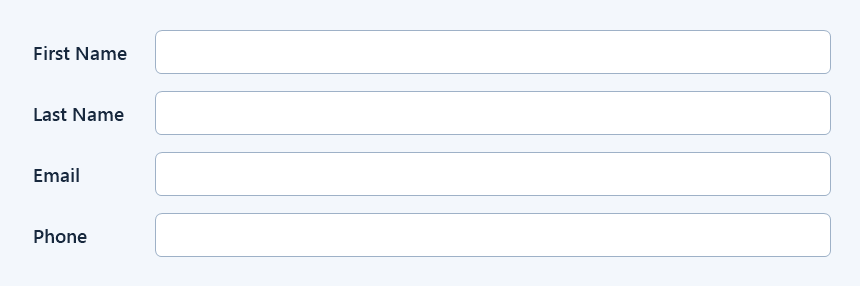
One column with labels beside inputs
Set Form Format to Horizontal and Number Columns to Default. Edit each custom field and set Container Size to Full Width. Each field gets its own row, with the label on the left and the input beside it.
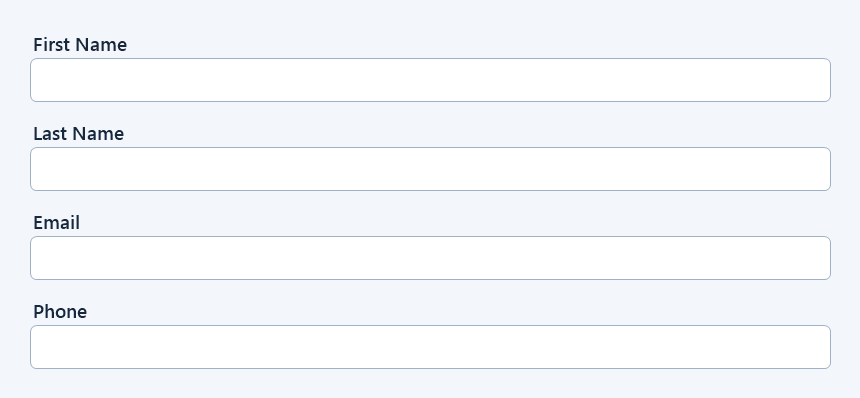
One column with labels above inputs
Use the same full-width fields and change Form Format to Stacked. This puts each label directly above its input.
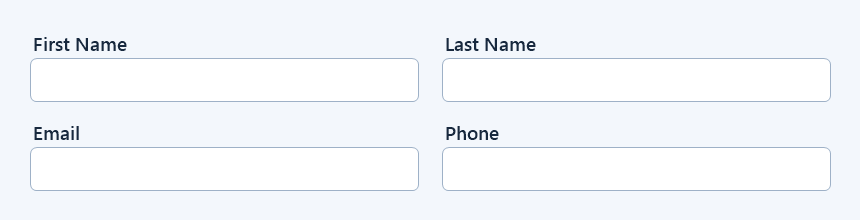
Two columns with labels above inputs
Set Number Columns to 2 and Form Format to Stacked. The fields share each row equally, with each label above its input.
Two columns with labels beside inputs
Keep Number Columns at 2 and change Form Format to Horizontal. Each row still has two fields, and each label sits beside its input.

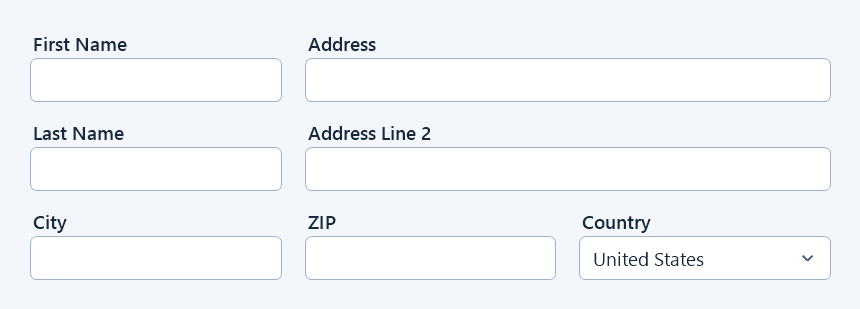
Custom grid with mixed field widths
Set Number Columns to Default and Form Format to Stacked. Edit each field's Container Size and arrange the fields in the order shown below. Choose widths that add up to a full row.
| Row | Fields in display order |
|---|---|
| 1 | First Name (1/3), Address (2/3) |
| 2 | Last Name (1/3), Address Line 2 (2/3) |
| 3 | City (1/3), ZIP (1/3), Country (1/3) |
Custom grid with hidden labels
Keep the custom grid settings above and set Show Fields Label to No. The field widths stay the same. To show hints such as “First Name” and “Address” inside empty text inputs, enter them in the Place Holder setting for each field. The country dropdown in this example shows its selected value.
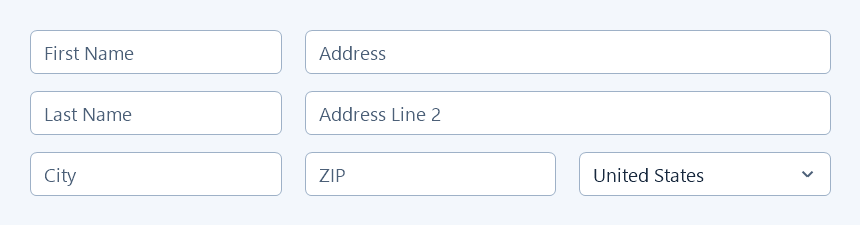
Placeholders disappear as users type. Keep visible labels where users need to refer back to them, or keep labels visible on selected fields with Use Field Setting.
How the settings work together
- Number Columns set to 2, 3, or 4 gives each field an equal share of the row and overrides individual Container Size settings. Choose Default - Use Field Container Size to set widths field by field.
- Container Size is set in the custom field editor. The options are Full Width, 1/2, 1/3, 2/3, 1/4, 2/4, and 3/4. 1/2 and 2/4 use the same width.
- Show Fields Label set to Yes or No applies to all custom field labels. Choose Use Field Setting to follow the Show Field Label option in each field's settings.
- Position still controls where a field appears. Fields set to Below Payment Amount or Below Payment Method stay in their assigned sections and also use the width set by Number Columns when you choose 2, 3, or 4.
If the published form looks different, check whether its Joomla menu item overrides Number Columns, Form Format, or Show Fields Label. The illustrations show the layouts on a wide screen. Preview your form on a phone too, since the site template and available space can affect how fields fit.