Emails & Messages
Documents Seller installs English templates for order and free download emails, along with messages that appear on the storefront. You can edit them to give customers payment instructions, explain how to get their files, and translate the text into your site's language.
Edit a message
- In the Joomla administrator, go to Documents Seller → Messages.
- For an email, edit both its Subject and Body. For a storefront message, edit the message in the corresponding text editor.
- Keep any tags you want Documents Seller to fill in, such as
[FIRST_NAME]or[ORDER_DETAIL]. Translate the text around the tags. The content you save here is shared across site languages. - Click Save and run a test order or free download through the flow you changed. Check the storefront text, the email subject and body, and any download links or attachments.
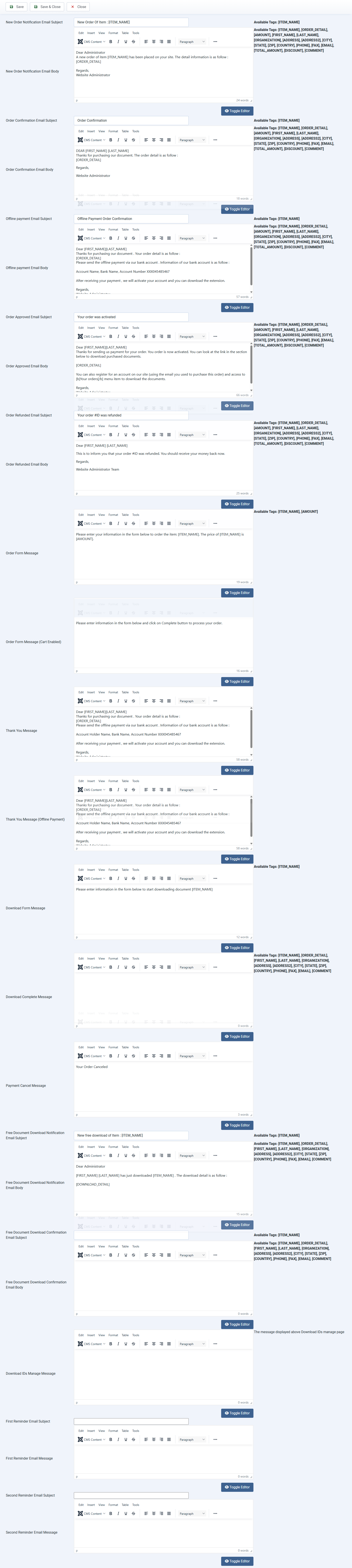
Email templates
Each template below has a Subject and Body field. Clear the subject and save if you want to disable that email.
| Email template | Recipient | When it is sent |
|---|---|---|
| New Order Notification Email | Administrator | When an online payment is confirmed, an offline order is submitted, or an order for a paid document completes with nothing to pay, such as when a coupon covers the full price. |
| Order Confirmation Email | Customer | When an online payment is confirmed or an order for a paid document completes with nothing to pay. This template also applies when an administrator creates a paid order for a paid document. |
| Offline payment Email | Customer | When the customer submits an order using the Offline Payment method. The order is pending, so include instructions for completing payment. |
| Order Approved Email | Customer | When an administrator marks an existing pending order as paid. For offline payments, this is the email customers receive after you confirm receipt of the payment. |
| Order Refunded Email | Customer | After a successful Refund action on an order using a payment plugin that supports refunds. |
| Free Document Download Notification Email | Administrator | When a visitor submits the download form for an order containing only free documents. |
| Free Document Download Confirmation Email | Customer | When a visitor submits the download form for an order containing only free documents. |
Free download emails are part of the download form flow. A direct download that bypasses the form sends neither email. Go to Documents Seller → Configuration and set Collect User Information For Downloading Free Documents to Yes to use the form.
Administrator notifications go to Notification Emails in the configuration. Separate multiple addresses with commas. In single-document checkout, the document's own Notification Emails takes precedence when set. If both are empty, Documents Seller uses the sender address. See Files, Downloads, and Emails.
To resend a customer email, select the order in Documents Seller → Orders and click Resend Email. Documents Seller selects the free download, order confirmation, or offline payment template using the order's items and current status.
Storefront messages
| Message | Where it appears | Supported tags |
|---|---|---|
| Order Form Message | Above the checkout form when the cart is disabled and the subtotal is greater than zero. | [ITEM_NAME], [AMOUNT], [DOCUMENT_TITLE], [AMOUNT_INCLUDING_TAX] |
| Order Form Message (Cart Enabled) | Above the checkout form when the cart is enabled and the subtotal is greater than zero. | Static text |
| Download Form Message | Above the checkout form when the subtotal is zero. | [ITEM_NAME], [AMOUNT] when the form contains one document |
| Thank You Message | On the completion page for an order for a paid document placed without the Offline Payment method. | Order tags below |
| Thank You Message (Offline Payment) | On the completion page after the customer submits an offline order. | Order tags below |
| Download Complete Message | On the completion page after the visitor submits the download form for an order containing only free documents. | Order tags below |
| Payment Cancel Message | On the cancellation page when the payment gateway returns the customer there. | Static text |
| Download IDs Manage Message | Above the Download IDs list on the storefront. Joomla extension stores can use this message to explain how customers set up extension updates. | Static text |
On checkout and download forms, write tags in uppercase. [ITEM_NAME] is the linked document title, [DOCUMENT_TITLE] is the plain title, and [AMOUNT] is the listed price. [AMOUNT_INCLUDING_TAX] adds the configured tax rate to the listed price. Use generic wording in the download form message if visitors can check out with multiple free documents in the cart.
Order tags
The following tags work in email bodies and in the three completion messages listed above. Tags in these templates are case-insensitive. In email subjects, use plain-text values such as [ITEM_NAME] or [INVOICE_NUMBER].
| Tags | What they insert |
|---|---|
[ORDER_DETAIL] |
An HTML summary of the order with the documents, checkout fields, and payment details where applicable. Use it in a body or completion message. |
[ITEM_NAME], [DOCUMENT_TITLE], [DOCUMENT_ID], [SHORT_DESCRIPTION], [DESCRIPTION] |
Details for the first document in the order. Use [ORDER_DETAIL] to show all documents in a cart order. |
[NAME], [FIRST_NAME], [LAST_NAME], [ORGANIZATION], [ADDRESS], [ADDRESS2], [CITY], [STATE], [ZIP], [COUNTRY], [PHONE], [FAX], [EMAIL], [COMMENT], [BILLING_ADDRESS] |
Customer details from the order. Values for individual checkout fields depend on which fields are published and available for the order. |
[TOTAL_AMOUNT], [DISCOUNT_AMOUNT], [TAX_AMOUNT], [TAX_RATE], [AMOUNT] |
Subtotal, discount, tax amount, tax rate, and final order total, respectively. |
[PAYMENT_METHOD_TITLE], [PAYMENT_METHOD], [TRANSACTION_ID], [COUPON_CODE], [INVOICE_NUMBER] |
Payment method title, payment plugin name, transaction ID, coupon code, and formatted invoice number. Use each where the corresponding data is available. |
[CREATED_DATE], [FROM_DATE], [TO_DATE] |
[CREATED_DATE] and [FROM_DATE] both show the order creation date. [TO_DATE] is available when the first document has a download limit in days. It adds that number of days to the order creation date. |
[DOWNLOAD_LINK] |
The raw download URL for the first document. This tag inserts the URL regardless of Send Download Link Via Email. Reserve it for customer messages after payment or approval. |
If the editor lists [DISCOUNT], enter [DISCOUNT_AMOUNT] in the template to show the discount.
To include a published custom field, put its Name in brackets. For example, use [LICENSE_HOLDER] for a field named license_holder. The tag is filled in when the field is available for the order and has a value.
Configure payment instructions and downloads
- Replace the sample bank details in both Offline payment Email Body and Thank You Message (Offline Payment) before taking offline payments. Tell customers how to pay and when to expect access to the files.
- To deliver links in customer confirmation and approval emails, enable Send Download Link Via Email and keep
[ORDER_DETAIL]in the body. The summary includes a link per document for a confirmed order. Administrator notification summaries omit these links. For a refund email, use individual tags such as[ITEM_NAME]and[AMOUNT]to avoid showing links to refunded files. - To deliver files as attachments, enable Send Documents Via Email. Check that the confirmation and approval messages describe the delivery method you actually use. Customers with an account can also use a published Orders History menu item to retrieve available downloads.
- To attach PDF invoices to customer confirmation and approval emails, enable Activate Invoice Feature. Documents Seller attaches an invoice when the order has an invoice number. See Taxes and Invoices.